
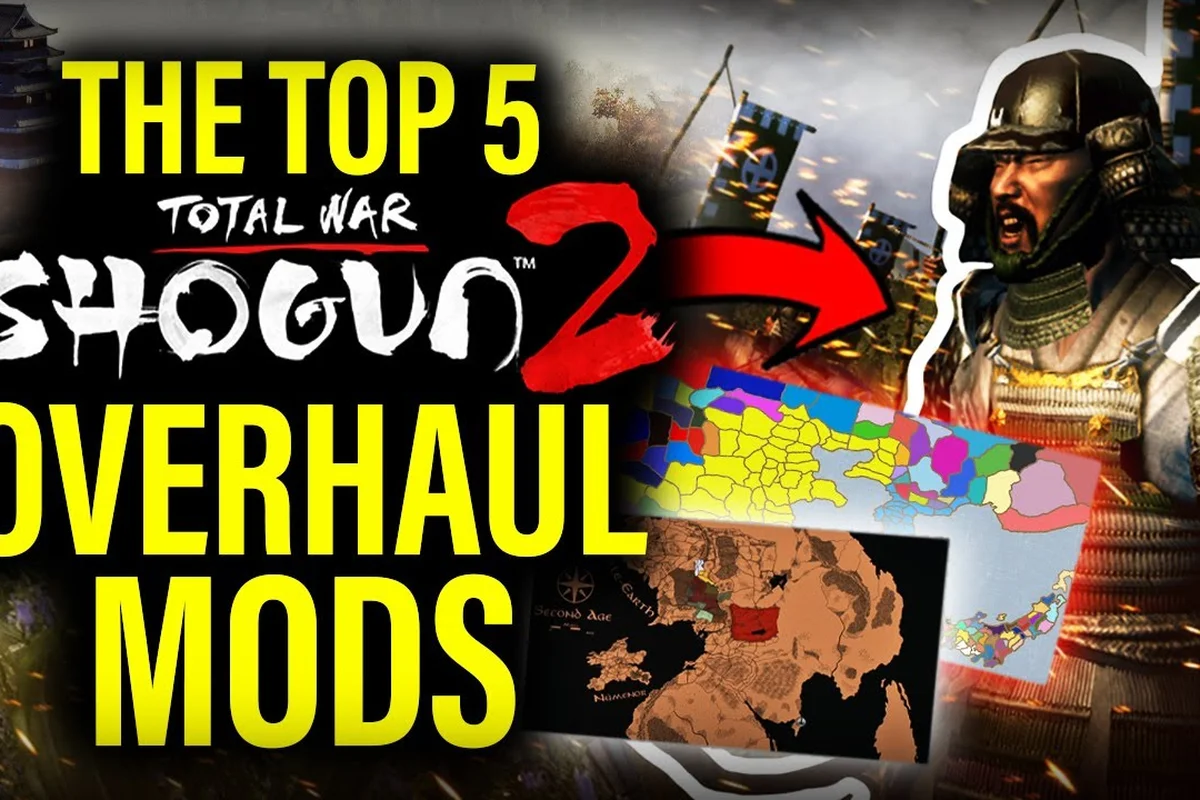
Total War: SHOGUN 2 has stayed alive for more than a decade because its modding community never stopped shipping. Between the Steam Workshop and the newer in-game Mod.io browser, the best Shogun 2 mods now reach players in two complementary ways, and a clean install of the Complete Edition has both routes working side by side. This guide walks through how to install Shogun 2 mods, which picks belong in a first install list, and what changes when the new build meets the old library.
How the Modding Scene Works in 2026
SHOGUN 2 launched in 2011, gained Workshop support shortly after, and received a rebuilt Complete Edition client that bundles everything on a modern engine. According to the SHOGUN 2 Complete Edition store page, the package adds 4K interface scaling, reworked lighting and shadows, a full Japanese and Chinese voice-over, and more than fifty minor factions promoted to playable status. None of that replaces mods; instead, the new client exposes a second channel for them.
Steam Workshop: The Original Route
Steam Workshop has been the default for Shogun 2 Steam Workshop mods for over a decade. Subscribing auto-downloads files, pushes updates, and lets you sort by rating, date, or Most Subscribed. According to the Steam Community hub for the Complete Edition, Workshop items are subscribed to rather than installed by hand, which keeps updates automatic, but it also means a broken mod can be pushed to subscribers without warning.
The Workshop still wins on volume: the long tail of unit packs, UI tweaks, and historical-accuracy projects lives there. Players who only want a handful of quality-of-life patches usually stay inside the Workshop tab and never look at anything else.
Mod.io and the In-Game Mod Browser
The rebuilt client adds a second route through Mod.io, exposed inside the launcher as the Shogun 2 in-game mod browser. Players browse, subscribe, and toggle mods without leaving the game, which lowers the barrier for newcomers who never opened the Steam Workshop.
The same Workshop page notes that the Complete Edition adds an in-game browser on top of the Workshop through Mod.io, and that the practical friction points reported by modders are load order and version drift between the legacy branch and the rebuilt client. A mod compiled against the old executable may not load on the 2026 build, so even long-standing favorites sometimes need a refreshed version before they subscribe cleanly.
Two Routes, One Mod Folder
Both routes write into the same data folder under the game install directory, and that single convergence point is exactly what makes Total War Shogun 2 mod management feel different from newer entries in the series. A Steam Workshop subscribe and a Mod.io install both drop their loose .pack files and user.script.txt entries into the same data subfolder, so toggling a unit roster mod from one source and a UI overhaul from the other rarely conflicts at the file level — the breakage almost always happens at the manifest layer instead, which is why a clean data backup before each session is worth more than any troubleshooting guide. That makes life easier for tinkerers experimenting with fall of the samurai balance packs, and harder for troubleshooters chasing why a save desyncs after a hot-pushed update. The table below shows how the two pipelines compare on the points players actually care about.
| Feature | Steam Workshop | Mod.io (in-game browser) |
|---|---|---|
| Where you subscribe | Steam client | Game launcher / browser tab |
| Auto-updates | Yes | Yes |
| Reach inside the game | Workshop button | Built-in mod manager |
| Login required | Steam account | Mod.io account (link once) |
| Best for | Legacy library, mass browsing | New users, single-client workflow |
| Common pitfall | Mod pushed mid-session can break saves | Load order can desync from Workshop version |
| Discovery tools | Ratings, Most Subscribed, Collections | Curated lists, tags, screenshots |
The cleanest workflow for most players in 2026 is: keep heavy overhauls on Steam Workshop, where the long-standing community around DarthMod, Radious, and Sengoku-era balance packs lives, and use the in-game Mod.io browser for quick toggles on small QoL mods like UI skins, camera tweaks, or auto-resolve adjustments. Because both pipelines write .pack files into the same data folder, a single Mod.io subscribe to something like a unit roster addon can sit cleanly next to a Workshop-subscribed campaign overhaul without file-level conflicts — but as the comparison table shows, load order desyncs are still the most common failure mode, so a quick user.script.txt check after switching mod sources catches most issues before they corrupt a long Otomo campaign save.
Must-Have Visual and Combat Overhauls
Visual mods are the first thing most players reach for, and SHOGUN 2's base textures look tired on a 4K monitor. A small set of overhauls has stayed on the Most Subscribed list for years, while a newer wave of combat-realism mods has carved out a parallel audience.
Visual Refreshes Worth Installing First
The three visual pillars that almost every mod list agrees on are better textures, sharper UI, and more blood. A solid first sweep looks like this: drop in a 4K unit and terrain pack from the Steam Workshop to make ashigaru and samurai read clearly at camera distance, layer a UI scaling fix if you're on the 2011 build (the Complete Edition already ships a 4K UI), and finish with a gore pack for the persistent-wound and dismemberment effects that the vanilla title deliberately tones down for streaming. Together these three mods re-skin roughly 80% of what you see on screen before you ever touch lighting or post-processing.
| Mod category | What it does | Install channel | Compatibility notes |
|---|---|---|---|
| 4K texture packs | Upsamples unit models, terrain, building art | Workshop | Works on both 2011 and Complete Edition |
| UI scaling fixes | Improves readability on 1440p / 4K | Workshop or Mod.io | Complete Edition already has a built-in 4K UI, so this layer is mostly redundant there |
| Blood and gore mods | Adds dismemberment, persistent wounds | Workshop | Toggle off before recording or streaming |
| Lighting overhauls | Replaces ambient and sun light curves | Workshop | Can darken night battles; pair with a brightness tweak |
Players who only want a single visual sweep should look at a community guide to graphics overhauls and pick the one that matches their hardware tier. Mods that touch lighting folders occasionally collide with each other, so keep one lighting mod active at a time.
Combat Realism and AI Improvements
The combat scene is where the best Shogun 2 mods really earn their keep. AI overhauls rebalance faction decision-making on the campaign map, forcing players to honor trade agreements and respond to real yari-ashigaru rushes rather than predictable AI exploits, while realism mods re-tune matchlock accuracy, cavalry charge damage, and the 0.45-second melee block window so that katana samurai no longer shred full yari walls in a single sweep — a direct response to the vanilla matchup where katana cavalry deleted ashigaru formations before morale could even break.
| Mod type | Effect on battles | Risk level |
|---|---|---|
| Better AI / Diplomacy | Smarter faction decisions, more dangerous neighbors | Low — pure logic changes |
| Realism unit stats | Lower melee block arc, more lethal matchlocks | Medium — breaks muscle memory |
| Large army mods | Doubles unit cap per stack | High — performance heavy on older CPUs |
| Blood and dismemberment | Visible wounds on unit models | Low — visual only |
Anyone serious about overhauls should test with a single-stack army first. A 40-unit stack under a heavy realism mod can still chug on a mid-range GPU, but a doubled large-army stack is what historically causes mid-campaign crashes on the 2011 client.
Campaign, Economy, and Map Mods
The campaign layer has always been the most active area for Shogun 2 mod recommendations, simply because the vanilla economy loop is so bare that a few targeted mods can override entire scripted behaviors. Mods like Radious Total War or DarthMod rebalance province income, agent action success rates, and AI aggression, while map overhauls (e.g., expanded clan territories, new trade nodes, historically accurate coastline fixes) change the strategic calculus of every turn in grand campaign. Because Shogun 2's steam workshop mods and the in-game mod browser both pull from this same pool, players can stack economy, diplomacy, and map changes into a single load order — something harder to do in older titles without manual mod manager tweaking.
Economy and Diplomacy Reworks
| Mod | Focus | Best for |
|---|---|---|
| Tax and trade rebalance | Smoother income curve | Players stuck in bankruptcy spirals |
| Better AI diplomacy | More reliable trade partners, fewer random DoWs | Long campaigns into Realm Divide |
| Expanded building trees | More province specialisation options | Builders who like sandbox play |
| More minor factions | More diplomacy targets | Multiplayer-style campaigns |
The Complete Edition's expanded roster now includes 50+ minor factions as playable on the rebuilt Steam client, so legacy "more factions" mods are largely redundant for anyone running the post-2013 build — players should check the in-game mod browser or Steam Workshop for compatibility tags before subscribing. However, anyone still running the original 2011 release, or running older versions through Total War: Shogun 2 mod.io mirrors, will still need those faction-expansion packs since the base game only ships with the original 8-9 clans, and the Steam Workshop's auto-conversion can occasionally break scripting in diplomacy overhaul mods that reference specific faction IDs removed in later patches.
Map and Historical-Accuracy Packs
The base campaign map covers Honshu, Kyushu, and Shikoku but leaves Hokkaido out. Several map mods fill that gap or add regional detail. A full map overhaul guide is outside this article, but the standard picks fall into three buckets.
| Bucket | Example change | Who it suits |
|---|---|---|
| Expanded Hokkaido | Adds the northern island with a few extra provinces | Players who like longer campaigns |
| Historical province names | Swaps generic placeholders for Sengoku-era labels | Roleplay and immersion players |
| Battle map revisions | Tweaks ambush and siege layouts | Multiplayer and tournament players |
Players who only need map tweaks can read the Shogun 2 map mods overview for a focused install list, but it is worth noting that Hokkaido mods typically push campaign length past 200 turns and rebalance trade nodes between Hakodate and the northern sea lanes, so veteran players should disable realm divide cooldown timers before enabling them.
Installing, Enabling, and Disabling Mods Safely
Most install headaches come from three places: forgetting to launch through the right executable, mixing mod versions, or trying to add a mod mid-save. The install process itself is short, but the prep work saves hours later. Specifically, you should always launch Shogun 2 via the Shogun2.exe (not the launcher) after enabling mods in preferences.script.txt, since the Steam Workshop loader sometimes fails to mount the data folder correctly otherwise. Version mixing is the silent killer here — say, dropping a v3.1 unit-rebalance pack on top of a v3.0 save will corrupt your campaign, because the schema changes between Total War Shogun 2 hotfix patches shift unit stats and recruitment IDs mid-table. And adding a mod mid-save almost always breaks AI diplomacy, because newly loaded scripts don't retroactively hook into existing clan_relationships tables. The few minutes you spend verifying the executable path, matching the mod version to your current build, and starting a fresh campaign from the Shogun 2 main menu will save you an entire evening of troubleshooting.
The Clean Install Workflow
A clean first install looks the same whether you use Workshop or Mod.io, but the order of operations matters more than the specific mods you pick. Both delivery methods deposit their files into the same data folder that the Shogun 2 launcher reads at boot, so mixing sources without a clean baseline is the most common cause of missing textures, CTDs, and silently ignored script edits — backing up or deleting that folder before you subscribe to anything keeps every mod manager entry on equal footing.
-
Update the game through Steam and launch once to seed the mod folders.
-
Open the Mod Manager from the launcher — this is where the Shogun 2 in-game mod browser lives for the Complete Edition.
-
Subscribe to the mods you want, wait for the download to finish, then restart the game.
-
Re-open the Mod Manager, drag the new entries into the order listed in each mod's description, then click Apply.
-
Launch a custom battle or quick campaign first to confirm the load worked before committing to a long save.
The same Steam Community page on modding notes that load order and version drift between the legacy branch and the rebuilt client are the two friction points modders report most often, so always test on a throwaway save before adding anything to your main campaign.
How to Install Shogun 2 Mods Without Breaking Saves
A save that started in a clean vanilla state usually survives most mods. A save that started with five other mods in play almost never does. The rule is simple: install a mod before you start a campaign, not twenty turns in.
| Scenario | Risk | Recommended action |
|---|---|---|
| New campaign, mods added at turn 0 | Low | Safe — confirm load and play |
| New campaign, mods added at turn 30+ | High | Start a new campaign or back up the save |
| Switching from 2011 to Complete Edition mid-save | Critical | Saves are not cross-compatible; finish or abandon |
| Removing a mod mid-campaign | High | Test on a copy first, or commit to a new run |
The May 2023 Mod Manager Patch
After a 2023 patch, the in-game mod manager was hidden by default and several players reported they could no longer find it. The change is reversible from the launcher settings, and a community walkthrough on YouTube shows the exact toggle. Anyone installing mods for the first time on the rebuilt client should check the launcher options panel before assuming the mod manager is missing.
Players who prefer a video walkthrough of the basic install can also follow the AVIX install guide on YouTube, which walks through subscribing via the Steam Workshop button, confirming the pack appears at the top of the in-game mod browser, and then launching a Skirmish battle to verify units like the Naginata Warrior or Yari Ashigaru load their new textures or stat changes. This is especially helpful for Total War Shogun 2 players troubleshooting silent failures, since the game will still start even if a mod fails to compile its pack files, and a quick Skirmish match is the fastest way to surface script errors before committing to a Fall of the Samurai campaign.
Top Recommended Mods to Install First
A short, curated install list is more useful to a new player than a giant spreadsheet. The picks below are the ones that consistently show up at the top of community tier lists, and they cover the four pillars most campaigns need: visuals, AI, economy, and quality of life.
A 2026 Starter Loadout
| Mod slot | Pick | Why it earns the slot |
|---|---|---|
| Visual texture overhaul | 4K unit and terrain pack | Largest single visual jump available |
| Combat realism | Light stat pass (not the heavy one) | Preserves balance, improves lethality |
| AI | Diplomacy and battle AI upgrade | Keeps late-game challenging |
| Economy | Trade rebalance | Stops the bankruptcy spiral on harder difficulties |
| UI | Optional — skip on Complete Edition | The rebuilt UI is already 4K-ready |
| Audio | Voice and music pack | Confirms the install path is healthy |
Where to Find the Long Tail
Once the starter list is in, the Steam Workshop's Most Subscribed and Top Rated tabs become the discovery tools. Players who want a deeper overhaul pass can read a community recap of the biggest 2026 overhauls to see which large projects are still being updated. For modders who want to build their own packs, the Shogun 2 modding tools walkthrough covers the pack file editor and database tools.
Anyone planning a long Rise of the Samurai playthrough should also check a compatibility pass for the older campaign, because the 1180 setting has fewer total mods and a smaller community to troubleshoot problems.
The One Mod You Should Avoid on a First Install
The "everything overhaul" mods that change AI, economy, unit stats, and visuals in a single package are tempting, but they tend to be the ones that drift out of date fastest. If a single sweeping mod hasn't been updated in over a year, skip it on your first install and stick to the focused picks above. You can always layer it in once you know your baseline works.
Frequently Asked Questions
Do Total War Shogun 2 mods work on the Complete Edition in 2026?
Most do, but version drift is real. A mod compiled against the 2011 executable may not load on the rebuilt client, so check the mod's "last updated" date and the comments section before subscribing. The cleanest workflow is to test each new mod on a throwaway campaign first.
What is the best way to install Shogun 2 mods through Steam Workshop?
Subscribe from the Workshop tab for the Complete Edition, wait for the download, then enable and order the mod inside the in-game Mod Manager before launching. Always launch a quick battle first to confirm the load before you commit to a long campaign.
Can I use the in-game Mod.io browser without a Steam account?
You still need Steam to own and launch the game, but the Mod.io layer is a separate account. Linking it once in the launcher settings unlocks the in-game browser, and the same account can manage your subscriptions across both routes.
Do mods disable Steam achievements in SHOGUN 2?
Historically, the game blocks achievements when mods are active, but the rule has shifted across patches. The safest assumption is that achievements stay off while any mod is loaded, and players chasing the full achievement set should keep a vanilla profile ready.
How do I uninstall a Shogun 2 mod cleanly?
Unsubscribe from the Workshop or Mod.io page, then open the in-game Mod Manager and remove the entry. For stubborn cases, the data folder inside the game directory holds the installed files, and a manual delete is the last-resort fix when a mod refuses to unsubscribe.